
Appearance
Asset list
Every piece of company equipment: laptops, phones, tools, vehicles, furniture. Each asset has a code, a status and — once it is handed out — a holder.
Menu path HR › Assets › Asset list
Address https://hub.cnvconnect.com/assets
Permission assets:view
Who uses it office managers, IT, operations
Open this page from the menu
Typing hub.cnvconnect.com/assets into the address bar (or refreshing while you are on the page) currently returns a 403 Forbidden from the web server, because that address collides with the folder the site's own files are served from. Reach it from HR › Assets › Asset list instead, which works normally. Every other asset page is unaffected.
The screen
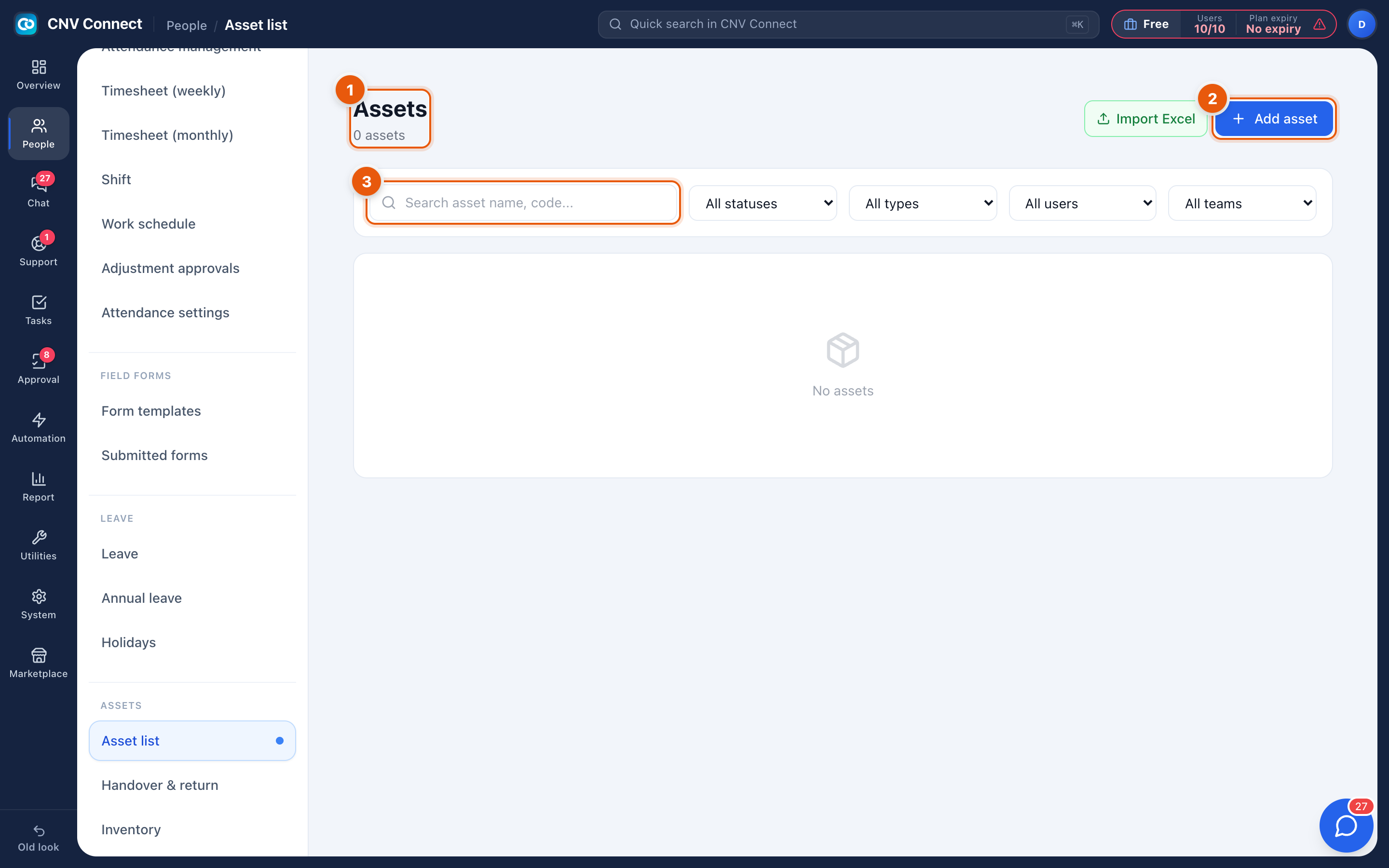
- Page title — the asset register, with how many assets match the filters.
- Add asset — create one; Import Excel beside it loads many at once.
- Search — by name, code or serial number, with the type, status and condition filters beside it.
How to…
Register equipment
- Select Add asset.
- Record the name, type, code or serial number, purchase date and value.
- Set the condition and leave the status as ready until it is handed to somebody.
Load an existing register
Select Import Excel, download the template, and paste your spreadsheet into it. Assets with a code that already exists are updated rather than duplicated.
Give an asset to somebody
Use Hand-outs and returns — that is what records who holds it, and when.
Retire an asset
Set its status to written off or liquidated. The record stays so the history of who used it survives.
Notes
- Status and holder are the two things people actually query: "what do we have spare?" and "who has the laptop?".
- Assets are counted in the asset report by status, type and condition.
- Software subscriptions and accounts belong in Digital assets instead.