
Appearance
Company chat room
One channel everybody belongs to. Pick it once, and membership follows the employee list: new joiners are added automatically, leavers are removed.
Menu path Utilities › General chat group
Address https://hub.cnvconnect.com/utilities/company-room
Permission company_room:view
Who uses it administrators
The screen
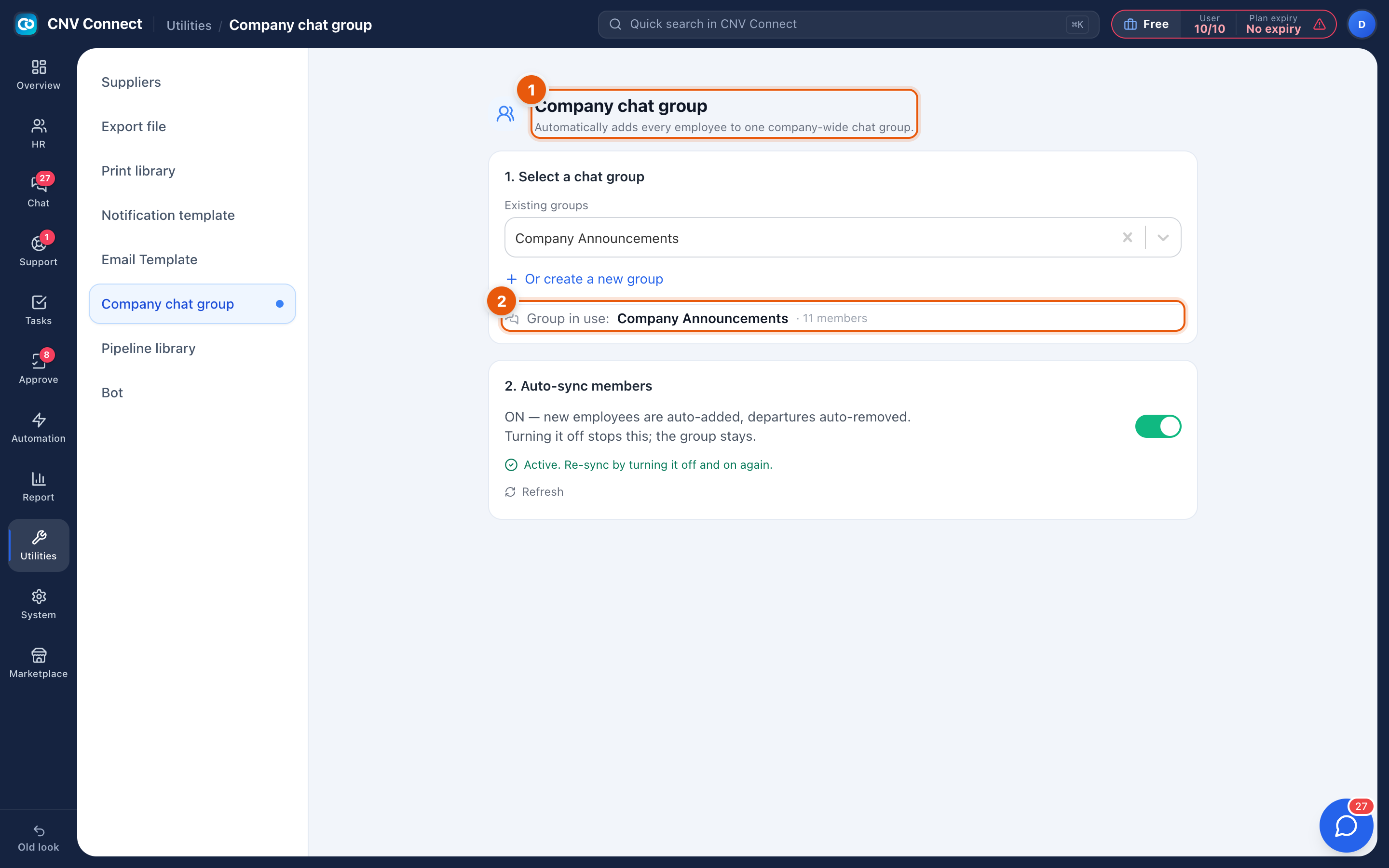
- Page title — automatically adds every employee to one chat group.
- Group in use — which channel is the company room today, and how many members it has.
How to…
Set it up
- Choose the channel that should be the company-wide one — announcements, not chatter.
- Leave auto-sync on. That is the entire point: nobody has to remember to add the new starter on their first morning.
- Check the member count afterwards; it should match your active headcount.
Change which channel is the company room
Select a different group. Membership sync moves with it; the old channel keeps its members but stops being maintained automatically.
Notes
- Auto-sync follows employee records — someone disabled there is removed here, which makes off-boarding one step shorter.
- Only membership is managed. Who may post, and whether the channel is announcement-only, is set in team chat itself.
- If the group list is empty, the chat module is not connected for this workspace.