
Appearance
Attendance settings
The rules that decide how people may clock in and what has to be true before the system accepts it: GPS inside a location, a photo, a Wi-Fi network, a form filled in first. Rules are written in layers, and a narrower layer overrides a wider one.
Menu path HR › Attendance settings
Address https://hub.cnvconnect.com/attendance/policies
Permission attendance_list:view
Who uses it HR and operations administrators
Parts of this screen are not translated yet
Several labels on this page still appear in Vietnamese in the product. This article names each control by what it does and where it sits, in the order shown in the screenshot.
The screen
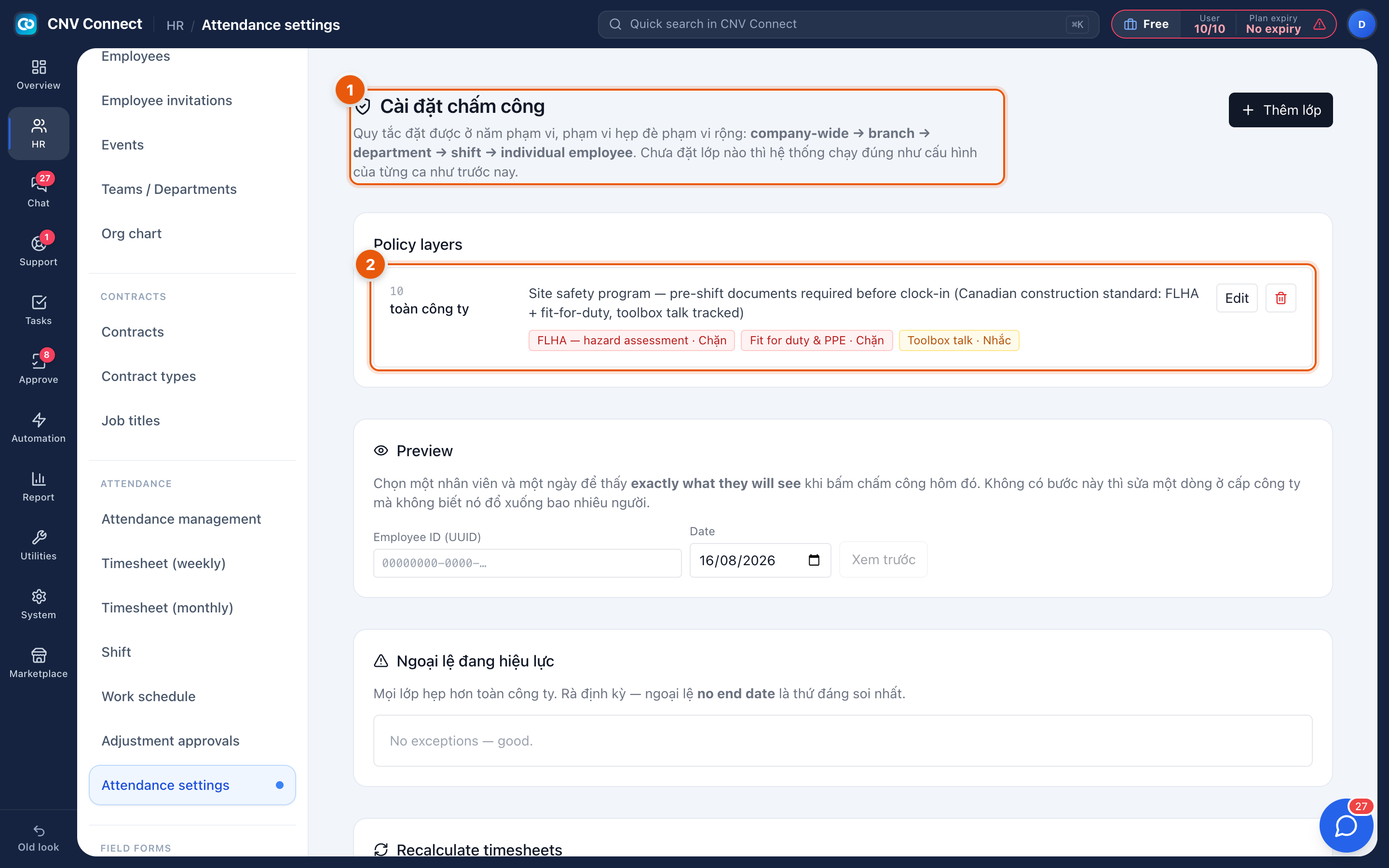
- How scoping works — rules can be set at five levels, and the narrower one wins: company-wide → branch → department → shift → individual employee. With no layer at all, each shift behaves exactly as it is configured, as before. The add layer button sits top right.
- Policy layers — the rules currently in force. Each layer shows its scope, a description and the requirements as coloured chips, for example FLHA — hazard assessment · block or Toolbox talk · remind. Edit changes a layer; the bin removes it.
- Preview — pick an employee and a date and see exactly what that person will be asked for when they clock in that day. Use it before rolling out a company-wide change.
- Exceptions in force — every layer narrower than company-wide. Exceptions with no end date are the ones worth reviewing regularly.
- Recalculate timesheets — after changing a rule mid-period, re-run the evaluation over a date range so past days follow the new rule.
Requirement strengths
| Chip | Behaviour |
|---|---|
| Block | The employee cannot clock in until the requirement is met |
| Remind | The employee is prompted but may continue |
How to…
Require a safety form before the shift starts
- Build the form in Field form templates.
- Select add layer here, choose the scope (company-wide, a site, a department, a shift or one person) and pick the form.
- Choose block if the shift must not start without it, or remind if it is advisory.
- Use Preview on a real employee and tomorrow's date to confirm what they will see.
Loosen a rule for one team
Add a narrower layer at department or shift level. It overrides the company-wide layer for those people only, and appears under exceptions in force so it does not get forgotten.
Apply a rule change to days already recorded
Use Recalculate timesheets with the date range. Attendance records keep their raw times; only the evaluation (on time, late, absent) is recomputed.
Notes
- Layers are additive in scope but exclusive in effect: exactly one layer applies to a given person on a given day — the narrowest that matches.
- Removing a layer takes effect immediately for future clock-ins, and does not rewrite past days until you recalculate.
- Requirements that need a location or Wi-Fi depend on Locations.