
Appearance
Attendance report
The monthly attendance summary: per employee, how many days they worked, how many hours, how often they were late, and how much of it was leave.
Menu path Report › Attendance report
Address https://hub.cnvconnect.com/reports/hr/attendance
Permission attendance_list:view
Who uses it HR, payroll, managers
The screen
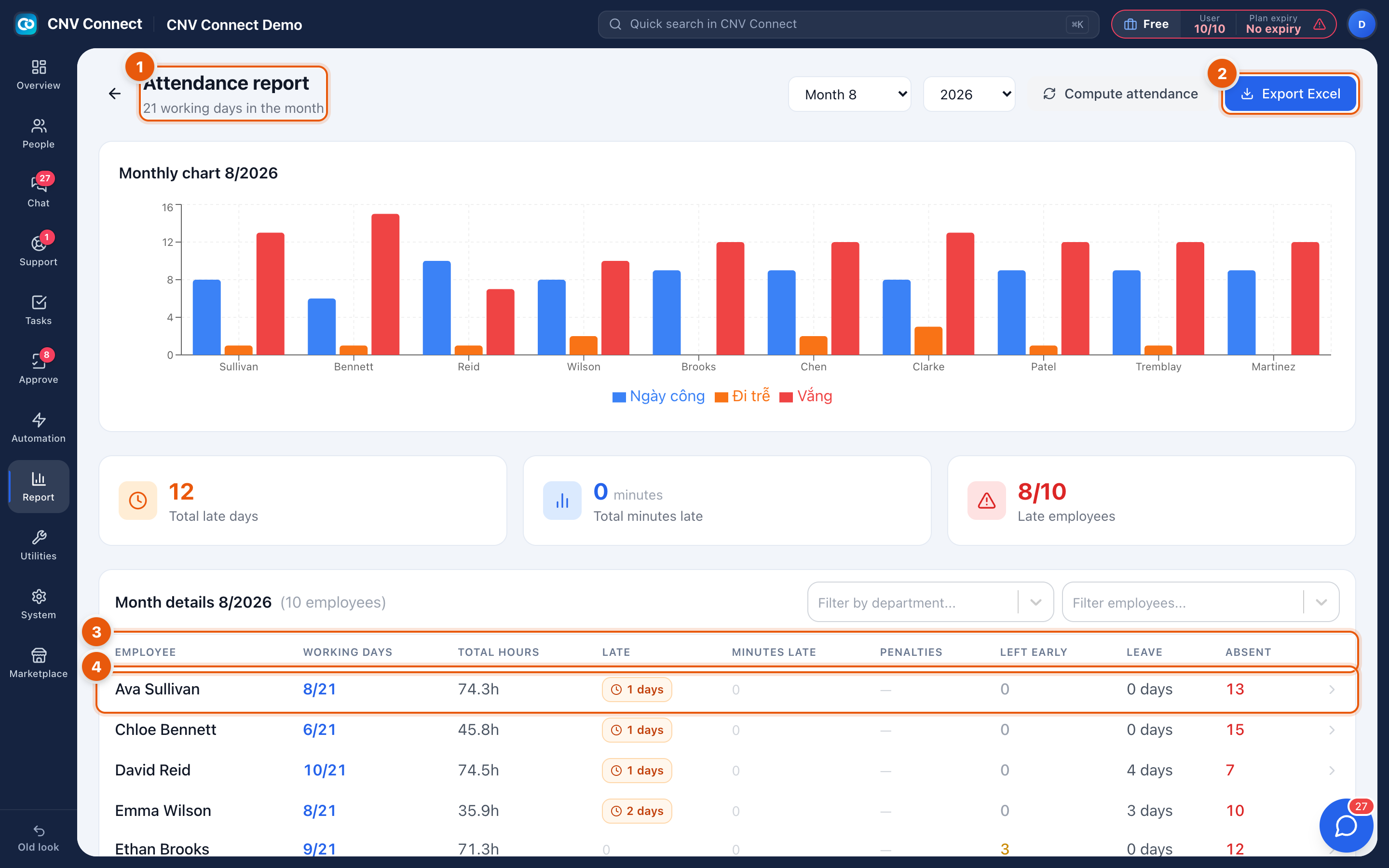
- Title and period — the attendance report with the month and year pickers and how many working days the month has. Compute attendance beside them recalculates the month from the underlying records.
- Export Excel — downloads the detail table.
- Columns — employee, working days (worked against expected), total hours, late days, minutes late, penalties, times left early, leave days and absences.
- A row — one employee's month.
How to…
Close the month
- Select the month and select Compute attendance.
- Check the absent column for anything unexplained, and clear it through corrections or leave.
- Recompute, then Export Excel for payroll.
Investigate one employee
Filter to them and compare their working days against the expected number. Then open the weekly timesheet for the same month to see which days went wrong.
Notes
- Compute is what turns raw punches into the summary. If you changed a shift, a rule or a correction after the last computation, run it again.
- Penalties come from the rules in Late penalties; an empty column means no rule is attached to those shifts.
- Working days show as worked / expected, and the expected number comes from the roster and the holiday calendar.