
Appearance
Employees
The employee list is the master record of everyone who works for the company. Attendance, leave, contracts, assets and payroll all point back to it, so this is the first list to fill in when a workspace is new.
Menu path HR › Employee
Address https://hub.cnvconnect.com/employees
Permission employees_list:view
Who uses it HR and administrators
The screen
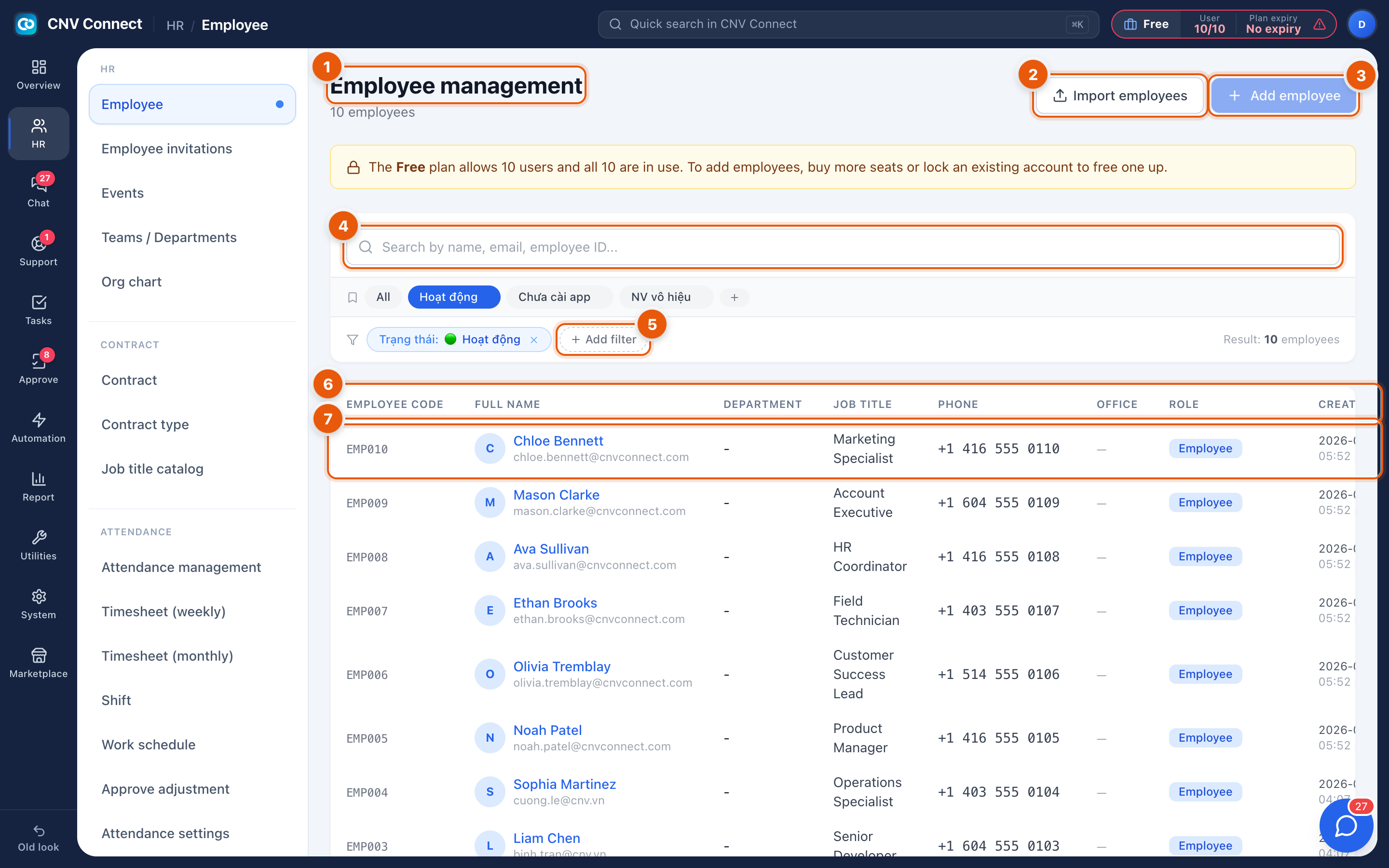
- Title and headcount — how many employee records match the current filter.
- Import employees — create many records at once from a spreadsheet.
- Add employee — create a single record.
- Search — matches name, e-mail and employee ID as you type.
- Filters — the chips are saved status filters (All, active, not yet installed the mobile app, disabled). Add filter stacks further conditions, each shown as a removable chip with the result count on the right.
- Columns — employee code, full name with e-mail, department, job title, phone, office, role, created date, whether the mobile app is installed, and status. Select a heading to sort.
- A row — the blue name opens the full record. The right-hand column holds per-row actions.
Some filter chips are not translated yet
The saved status filters still read in Vietnamese. In the order shown they are: all, active, mobile app not installed, and disabled employees.
How to…
Add one employee
- Select Add employee.
- Fill in the identity fields: full name, e-mail, phone, employee code.
- Choose the department, job title and office. These drive reports and approval routing, so it is worth setting them now rather than later.
- Save. The record exists immediately; the person cannot sign in until you also invite them.
Import a list of employees
- Select Import employees.
- Download the template, fill one row per person, and upload the file.
- Review the preview — rows with problems are listed with the reason.
- Confirm the import. Existing records with the same employee code are updated rather than duplicated.
Open and edit somebody's record
Select the person's name.
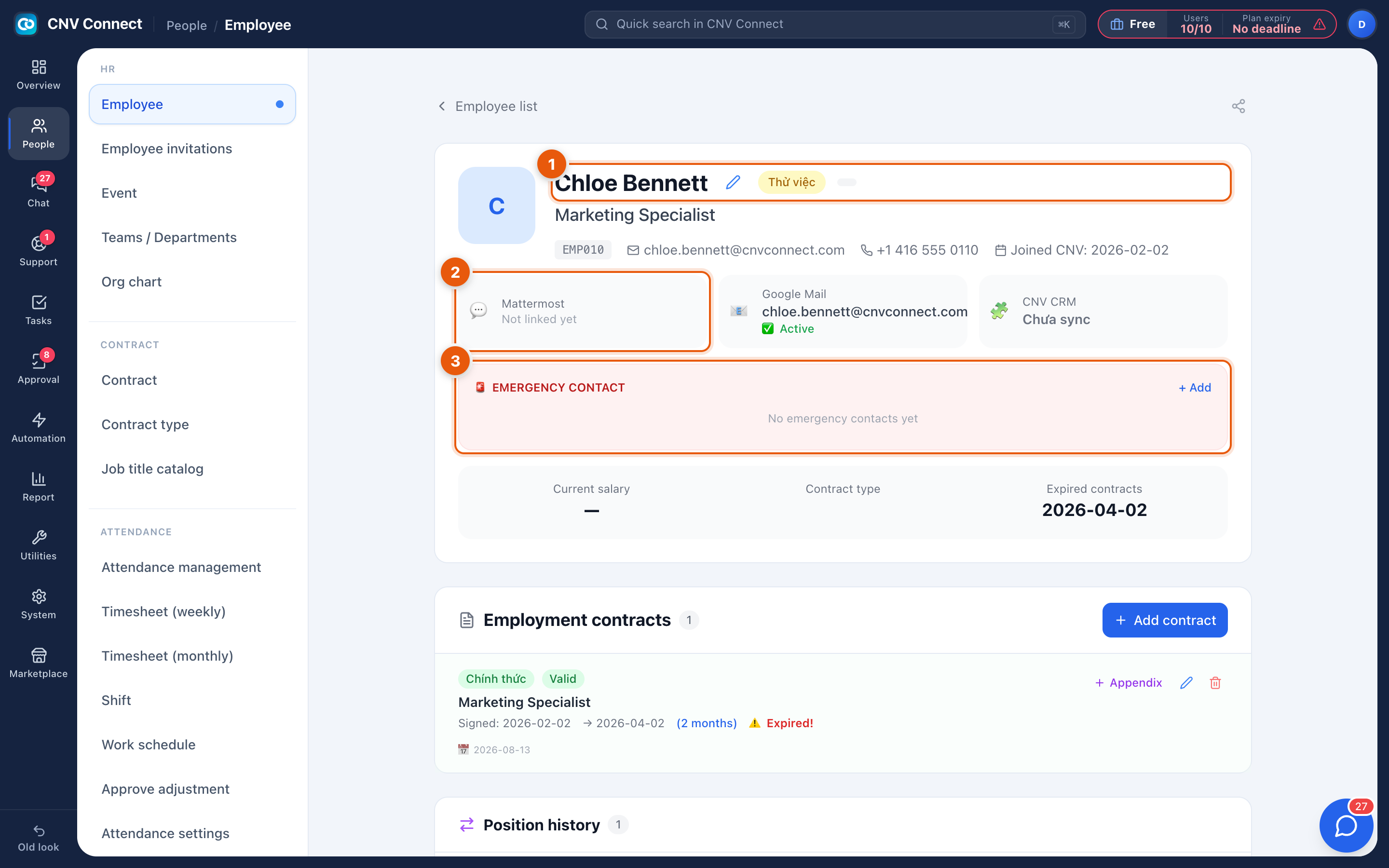
- Name, job title and employment status — the badge beside the name shows whether the person is on probation or permanent. The pencil opens the fields for editing. Underneath: employee code, e-mail, phone and the date they joined.
- Linked accounts — chat, mail and other systems this person is connected to, with their state: not linked yet, active, or not synced.
- Emergency contact — who to call. + Add records one; it is empty far more often than it should be.
Further down the record: Employment contracts with their validity (an expired contract is flagged in red), Position history, and the person's attendance, leave and assets.
Disable somebody who has left
Open the record and set the status to disabled (do not delete it). A disabled employee:
- can no longer sign in or clock in;
- disappears from pickers when assigning new work;
- keeps all history, so past attendance and approvals stay auditable;
- frees the seat they were using, which matters on the Free plan.
Notes
- Employee record ≠ user account. The record is the HR file; the account is what signs in. A new hire needs both — the record here and an invitation.
- Seats. Each active account consumes one seat of your plan. When seats run out, the page shows a banner and Add employee refuses to create accounts until you free one or buy more.
- The department column is empty until people are put into Teams / Departments.
- Deleting a record is deliberately hard: it would orphan attendance and approval history. Disable instead.