Appearance
Your personal settings
Two screens belong to you rather than to the company: Personal settings, where you choose how the workspace behaves for you, and My profile, the record other people see.
Menu path Avatar (top right) › Personal settings and Avatar › Profile
Address https://hub.cnvconnect.com/me and /profile
Permission none — everyone can edit their own settings
Personal settings (/me)
The page has a section list on the left and the chosen section on the right.
| Section | What you control |
|---|---|
| Account | Avatar (PNG/JPG up to 5 MB), your name and e-mail, a shortcut into your profile, and Sign out |
| Notifications | Which channels reach you (browser push, e-mail, in-app, mobile), which event types are allowed to push, and which automation flows are configured to notify you |
| Appearance | Display language, light/dark theme, a separate theme for chat, accent colour, text size and message density |
| Mobile | The six items on the mobile app's bottom navigation bar and the layout of its home screen |
| Security | Password change and active sessions |
| Utilities | Small conveniences such as keyboard shortcuts and auto-hiding the sidebar |
Changing the language reloads the page so every menu, label and date format switches at once.
This page is currently failing to open
On the current release, opening Personal settings shows "An error occurred. Please reload the page" instead of the settings. Until the fix ships, use these routes instead:
- Language — the picker on the sign-in screen, or ask an administrator to set your preferred language on your employee record.
- Password — sign out and use Forgot password?.
- Profile details and avatar — the My profile page below.
The screenshot in this article is omitted for the same reason.
My profile (/profile)
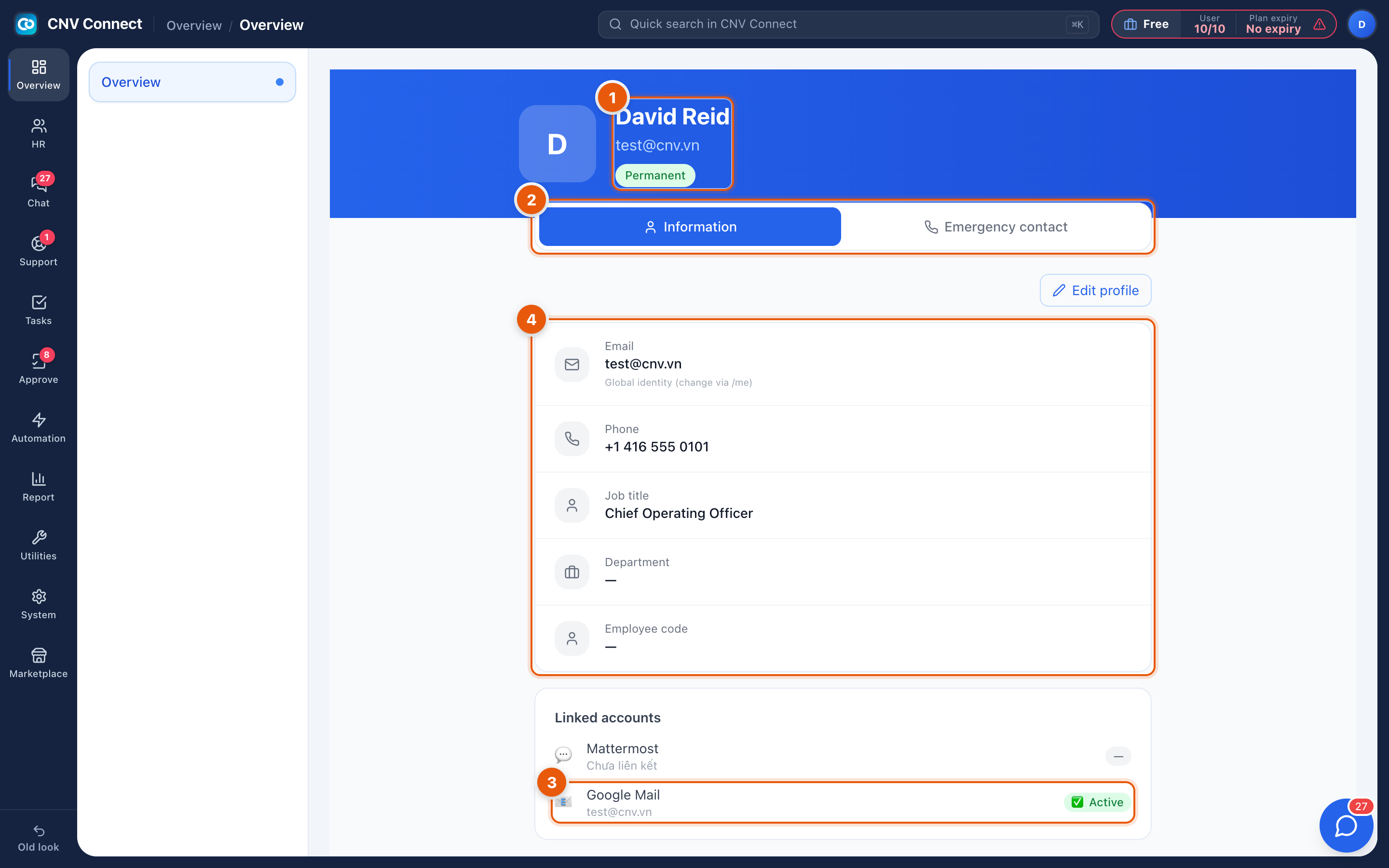
- Your name and photo — the identity colleagues see in chat, tasks and approvals.
- Information / Emergency contact tabs — personal details, and the person to call if something happens at work.
- Edit profile — opens the fields you are allowed to change yourself. Employment data (job title, contract, department) is deliberately read-only here; it is maintained by HR on your employee record.
- Linked accounts — which external accounts are connected to you, for example Google for calendar and sign-in.
How to update your details
- Open the avatar menu and select Profile.
- Select Edit profile.
- Change what you need and save. Fields greyed out are managed by HR — ask them to change those.
Your e-mail is your identity
The e-mail address is what you sign in with and what invitations were sent to, so it is changed centrally, not from this page. Ask an administrator if it must change.