
Appearance
Project templates
A template is a project with its task lists and tasks already written. Use one when the same piece of work repeats — onboarding a new employee, opening a site, closing a month.
Menu path Tasks › Assignments → Project template
Address https://hub.cnvconnect.com/tasks?view=templates
Permission tasks:view
Who uses it managers, operations
The screen
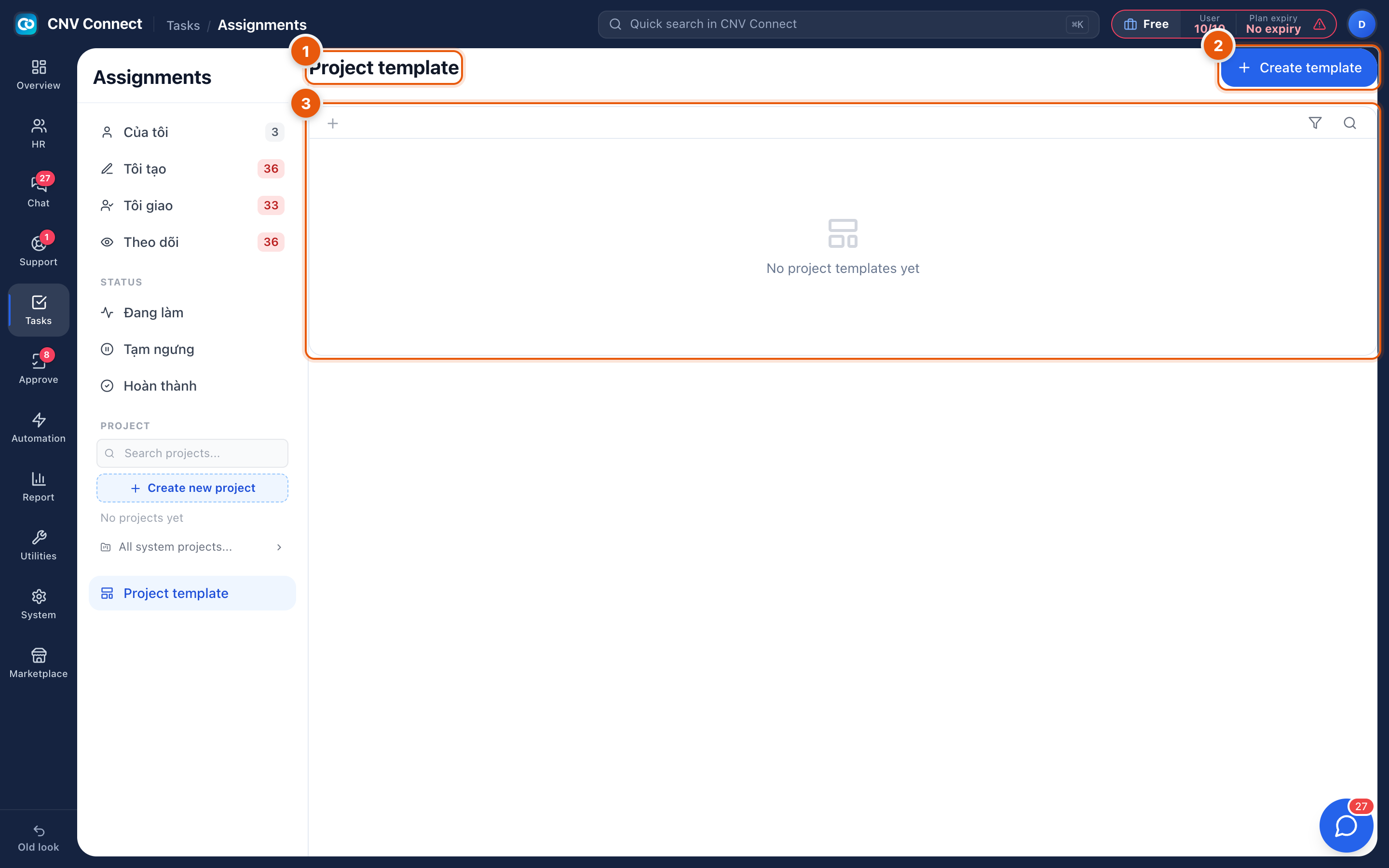
- Page title — project template.
- Create template — builds a new one.
- Empty state — no templates yet.
How to…
Build a template from scratch
- Select Create template and name it after the process ("New hire onboarding").
- Add the task lists that make up the process, and inside each the tasks in the order they happen.
- Where a task always belongs to the same role, set the assignee; leave the rest empty so they can be filled in per run.
- Set due dates as offsets ("day 1", "day 5") rather than fixed dates, so each run is scheduled from its own start.
Use a template
Create a project from the template. Everything is copied, dates are recalculated from the start date you choose, and the tasks appear in the task list like any others.
Keep templates honest
After each run, look at what people actually did and fold it back in — the steps that were missing, the ones nobody ever needed.
Notes
- A project created from a template is a normal project; editing it does not change the template.
- Templates are the right home for a checklist somebody currently keeps in a spreadsheet.
- For a repeating notification rather than repeating work, use Automation instead.