
Appearance
Storage usage
Where your plan's storage has gone: by module, by person and by record type.
Menu path System › Storage
Address https://hub.cnvconnect.com/settings/storage
Permission storage:view_all
Who uses it administrators
The screen
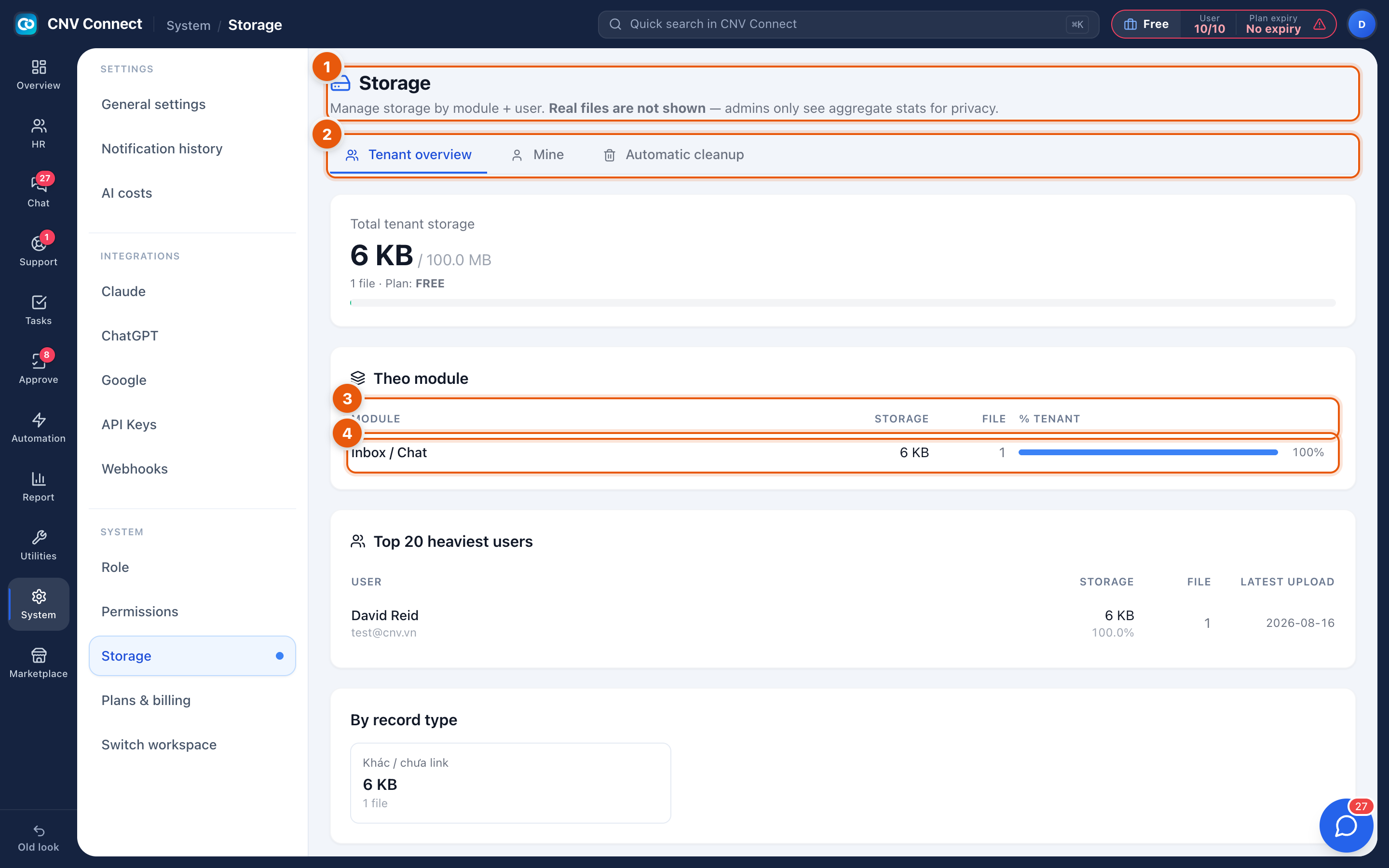
- Page title — manage storage by module and by user.
- Scope tabs — Tenant overview (the whole workspace), Mine (your own files) and Automatic cleanup (the retention rules that delete old, disposable files).
- Columns — module, storage, file count and share of the workspace total.
- A row — one module's usage.
How to…
Find out what is filling the workspace
Read By module first. In most workspaces chat attachments and HR documents dominate; photo-heavy field forms come next.
Free space
- Check Automatic cleanup — turning on retention for temporary files usually recovers more than deleting by hand.
- Look at Top 20 heaviest users for accidental uploads, such as a video shared in chat.
- Archive print library artwork that is no longer used.
Decide whether to upgrade
The allowance is part of your plan. Compare the total here with the bar in General settings, and if it is genuinely working data rather than clutter, upgrade in Plan and billing.
Notes
- Deleting a record does not always free its files immediately; cleanup runs on a schedule.
- Storage is counted per workspace, not per user, even though the per-user table exists.
- When storage is full, uploads fail — which shows up as people being unable to attach a photo to a form, long before anybody looks at this page.