
Appearance
Assignment rules
Rules that decide who picks up a ticket, so incoming work lands on a person instead of sitting in a pile until somebody notices.
Menu path Support › Settings › Assignments
Address https://hub.cnvconnect.com/tickets/rules
Permission ticket_rules:view
Who uses it support administrators
The screen
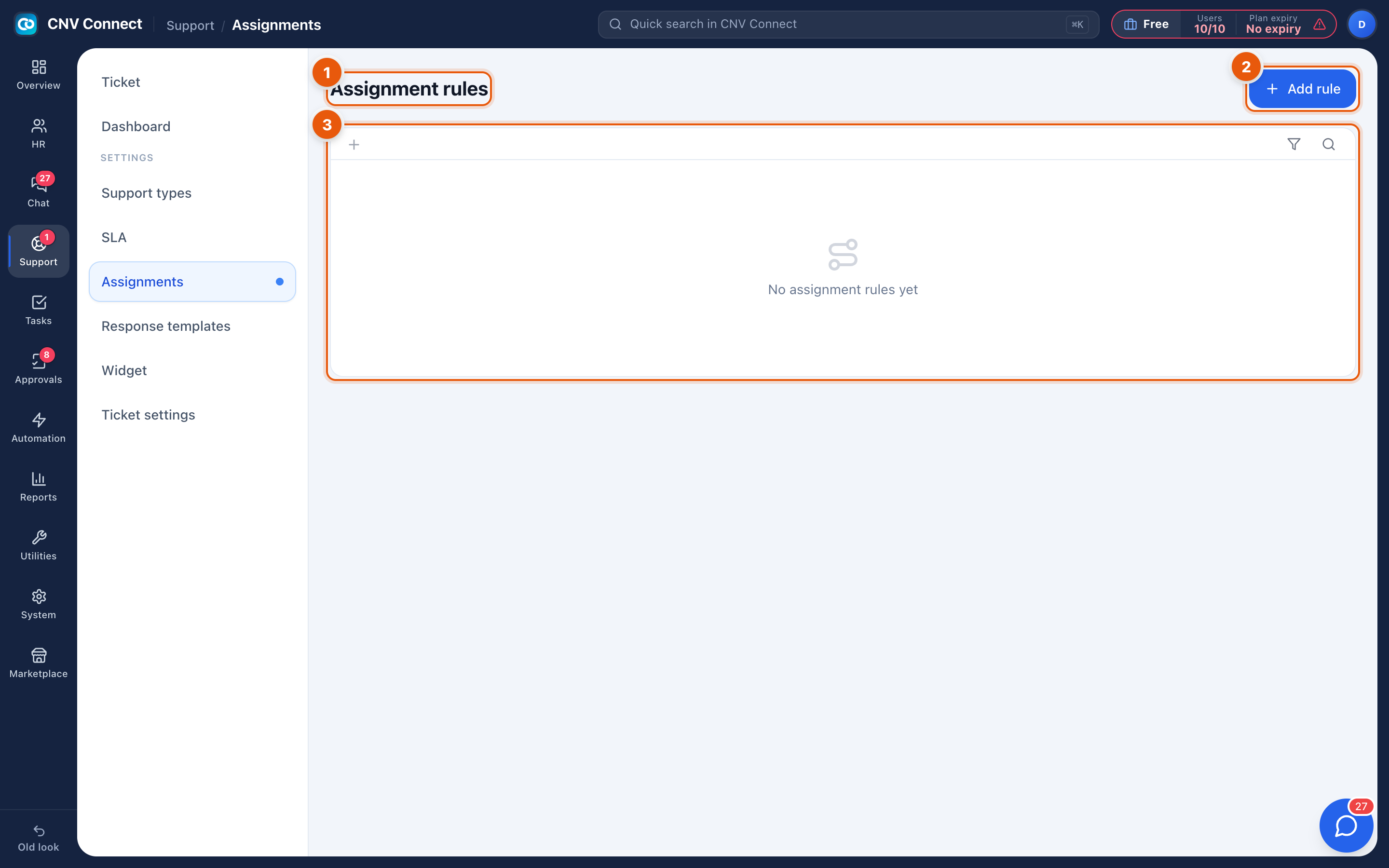
- Page title — assignment rules.
- Add rule — create an assignment rule.
- Empty state — with no rules, every new ticket is unassigned and has to be picked up by hand from the queue.
How to…
Write a rule
- Select Add rule.
- Set the condition — typically the category, the priority, or the source the ticket came from.
- Set the target: a specific agent, a team, or round-robin across a group so the load spreads evenly.
- Order the rules. They are evaluated top to bottom and the first match wins, so put the specific ones above the catch-all.
Cover the gap
End with a catch-all rule that assigns anything unmatched to the general support team. Without it, tickets that match nothing stay unassigned.
Notes
- Rules run when the ticket is created. Changing a ticket's category afterwards does not re-run them; reassign by hand.
- A rule that targets a person who is on leave still assigns to them — round-robin over a team is safer for holiday periods.
- Assignment does not change priority or SLA; those come from the ticket itself and from SLA policies.