
Appearance
Employment contracts
Every signed agreement with an employee — the original contract, its renewals and its appendices — with the dates that matter and the scanned copy attached.
Menu path HR › Contract
Address https://hub.cnvconnect.com/employees/contracts
Permission employees_contracts:view
Who uses it HR
The screen
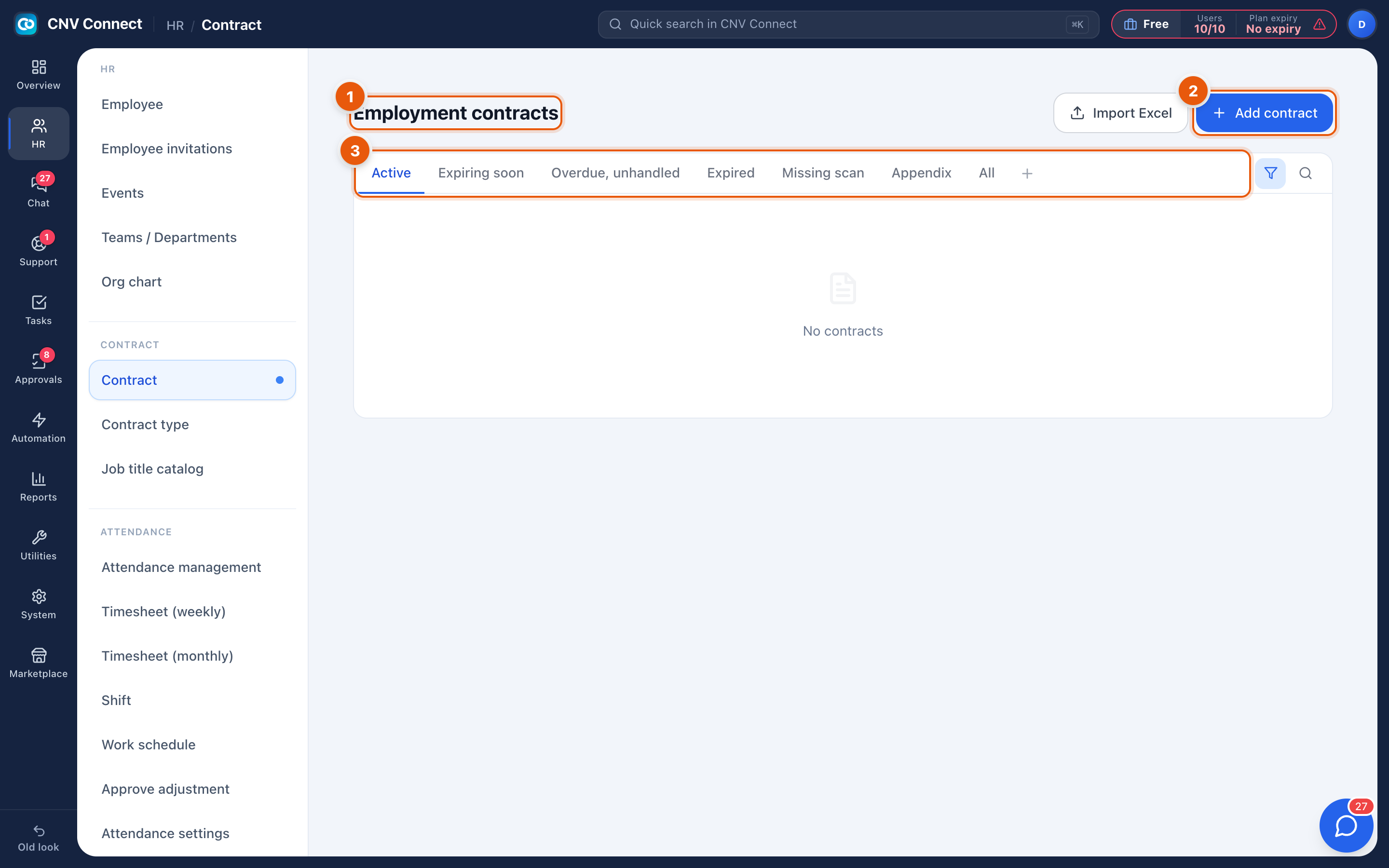
- Page title — employment contracts.
- Add contract — record one contract; Import Excel beside it loads many at once.
- Status tabs — the working queues: Active, Expiring soon, Overdue, unhandled (past the end date with no renewal — this tab should always be empty), Expired, Missing scan, Appendix and All.
How to…
Record a new contract
- Select Add contract.
- Pick the employee and the contract type — the type decides the employment status and which document template applies.
- Enter the contract number, start date and end date. Leave the end date empty for an indefinite contract.
- Upload the signed scan, or leave it and come back later — it will sit under Missing scan.
Renew a contract that is about to end
- Open the Expiring soon tab.
- Open the contract and create the renewal (or an appendix, if only terms change).
- The old contract moves to Expired, the new one becomes Active.
Find contracts without a signed copy
Open Missing scan. Anything listed is a compliance gap: the terms are in the system but the signed paper is not.
Notes
- The employment status on a person (probation, permanent, and so on) follows the contract type, which is why job titles and statuses are not free text on the employee record.
- Expiry warnings are driven by the end date; a contract with no end date never appears in Expiring soon.
- Contract documents count towards workspace storage.