
Appearance
Locations
The places where work happens: offices, sites, warehouses. Each location has coordinates and a radius, and that circle is what the mobile app checks when somebody clocks in.
Menu path HR › Settings › Locations
Address https://hub.cnvconnect.com/locations
Permission locations:view
Who uses it HR, operations administrators
The screen
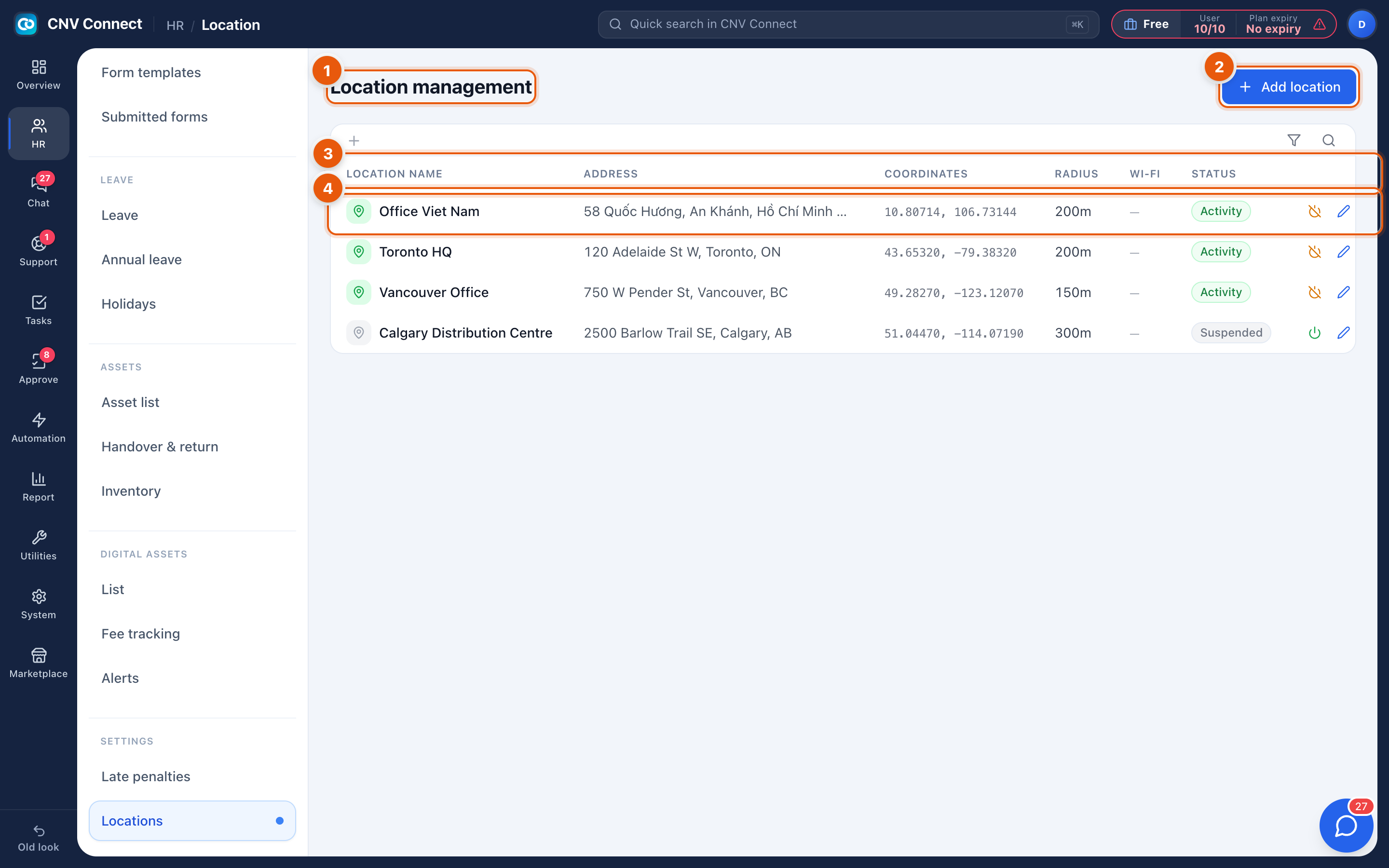
- Page title — location management.
- Add location — register a new place.
- Columns — location name, address, coordinates, radius (how far from the centre point a clock-in still counts as "here"), Wi-Fi network and status.
- A row — select it to edit the location, move the pin or change the radius.
How to…
Add a site
- Select Add location.
- Type the address — the map finds it and drops a pin; drag the pin if the geocoder is off.
- Set the radius. A tight radius is stricter but produces false rejections on weak GPS; a large one is forgiving. 100–200 m suits most offices.
- Optionally add the Wi-Fi network name for indoor sites where GPS is unreliable.
- Save.
Decide between GPS and Wi-Fi
| Situation | Recommendation |
|---|---|
| City-centre office, tall buildings | Add the Wi-Fi network as well as GPS |
| Open construction site | GPS with a generous radius |
| Vehicles or roaming crews | Rely on the on-site clock-in type rather than a fixed location |
Retire a location
Set it inactive rather than deleting it — attendance history keeps pointing at it.
Notes
- The accuracy column on attendance records reports the GPS radius the phone claimed. Poor accuracy plus a tight location radius is the usual cause of "I could not clock in".
- Locations feed the Office versus On-site type in attendance records.
- Location rules can be tightened per department or shift in Attendance settings.