
Appearance
Leave balances
How many days each employee has been granted, carried over, used, and has left. The workspace accrues annual leave automatically, and this page is where you check, adjust and top up.
Menu path HR › Annual leave
Address https://hub.cnvconnect.com/leave-balance
Permission leave_balance:view
Who uses it HR
The screen
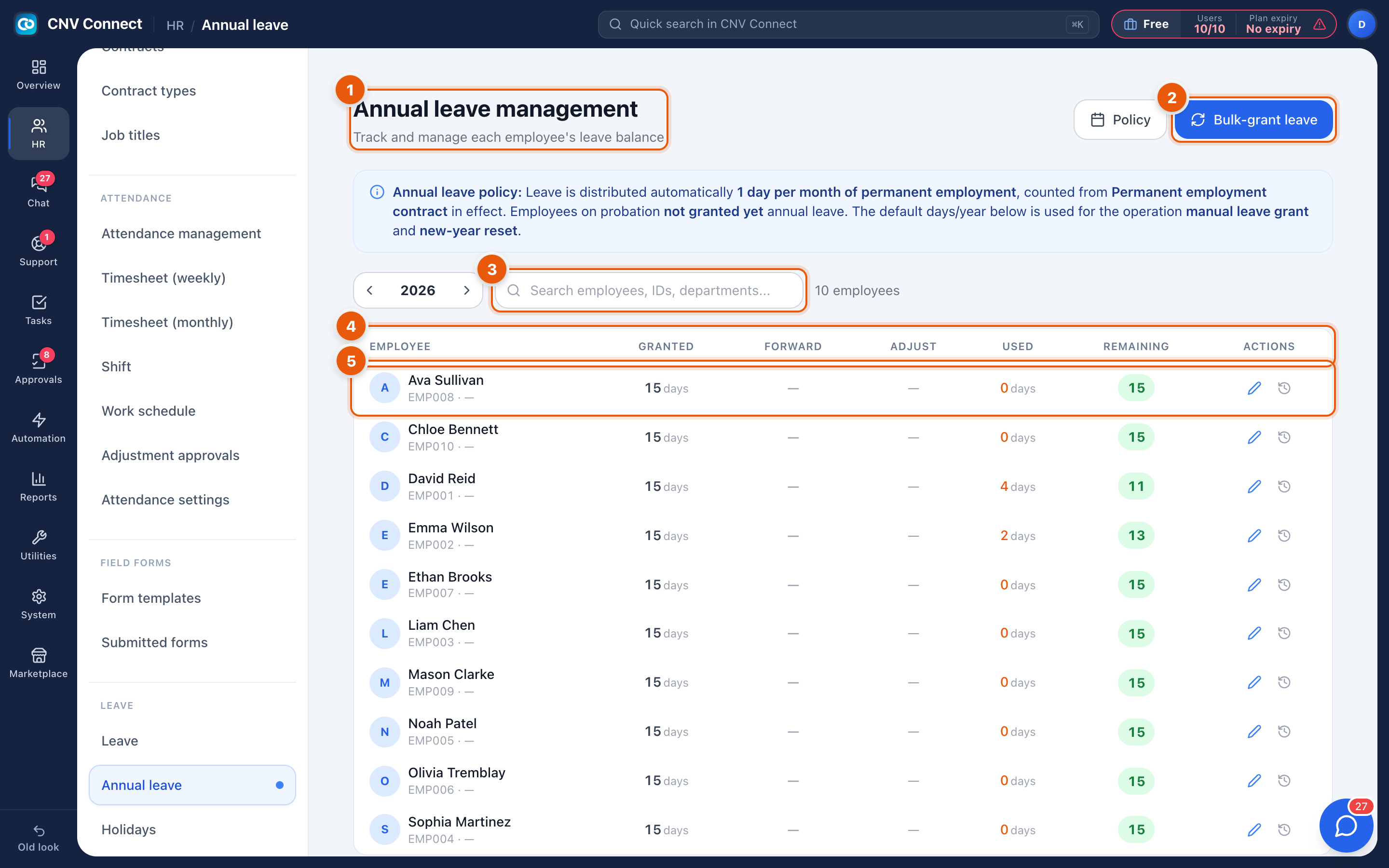
- Page title and policy — annual leave management, with the accrual rule currently in force, for example leave is distributed automatically, 1 day per month. Policy opens the accrual settings; Bulk-grant leave adds days to many employees at once.
- Search — by employee, ID or department.
- Columns — Granted (days given by the policy this year), Forward (carried over from last year), Adjust (manual corrections), Used (consumed by approved leave) and Remaining.
- A row — one employee's balance.
- Actions — adjust that person's balance, with a reason recorded against it.
How to…
Run the yearly grant
- Check Policy — days per year, grant date, carry-over cap.
- Select Bulk-grant leave, choose who it applies to and the number of days.
- Confirm. The Granted column moves for everybody included.
Correct one person
Use the row action rather than editing the grant: an adjustment is recorded separately with its reason, so the history still explains where the number came from.
Explain a balance to an employee
Remaining = granted + carried forward + adjustments − used. Each part is a column, so the arithmetic is visible on the row.
Notes
- Used only counts approved leave. A pending request does not reserve days, so two people can both book the last day of a small balance until one is approved.
- New starters accrue from their start date, not from January, when the policy is monthly.
- Carry-over is applied when the new year's grant runs, and is capped by the policy.