
Appearance
Help widget
A small panel you embed on your own website or app so customers can raise a ticket without e-mailing anybody. Each embed uses a widget key, which is what ties incoming messages to your workspace.
Menu path Support › Settings › Widget
Address https://hub.cnvconnect.com/tickets/widget
Permission support_widget:view
Who uses it support administrators, whoever maintains your website
The screen
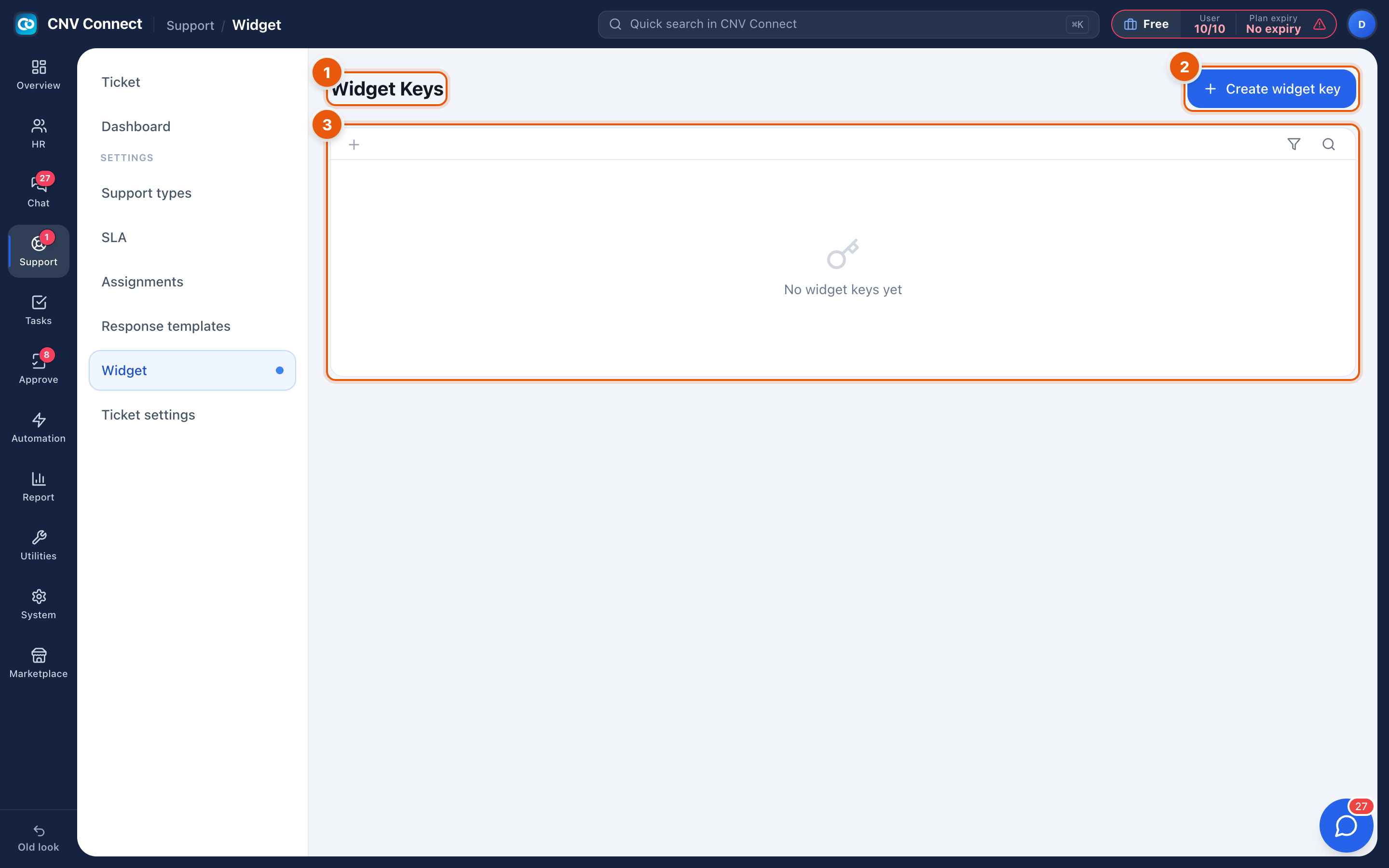
- Page title — widget keys.
- Create widget key — issues a key and the snippet that goes with it.
- Empty state — no keys yet, so nothing on your site can submit tickets.
How to…
Put the widget on your website
- Select Create widget key.
- Name the key after where it will live ("marketing site", "customer portal") — one key per place makes it possible to see where tickets come from and to revoke one embed without breaking the others.
- Configure the appearance and the fields the customer must fill in.
- Copy the snippet and give it to whoever maintains that site; it goes into the page HTML.
- Test by submitting a ticket yourself — it should appear in the queue within seconds.
Retire an embed
Revoke the key. The widget stops accepting submissions immediately, so remove the snippet from the page as well or visitors will see a dead panel.
Notes
- Tickets created through a widget arrive with the widget as their source, which is how the dashboard can separate web submissions from e-mail and phone.
- A widget key is public by nature — it sits in a web page. It can only create tickets; it cannot read them.
- Routing still applies: assignment rules decide who picks up what the widget brings in.