
Appearance
ChatGPT integration
Connects the workspace to OpenAI models. The page is the twin of Claude — either provider (or both) can power the AI features.
Menu path System › Integrations › ChatGPT
Address https://hub.cnvconnect.com/settings/integrations/chatgpt
Permission int_chatgpt:view
Who uses it administrators
The screen
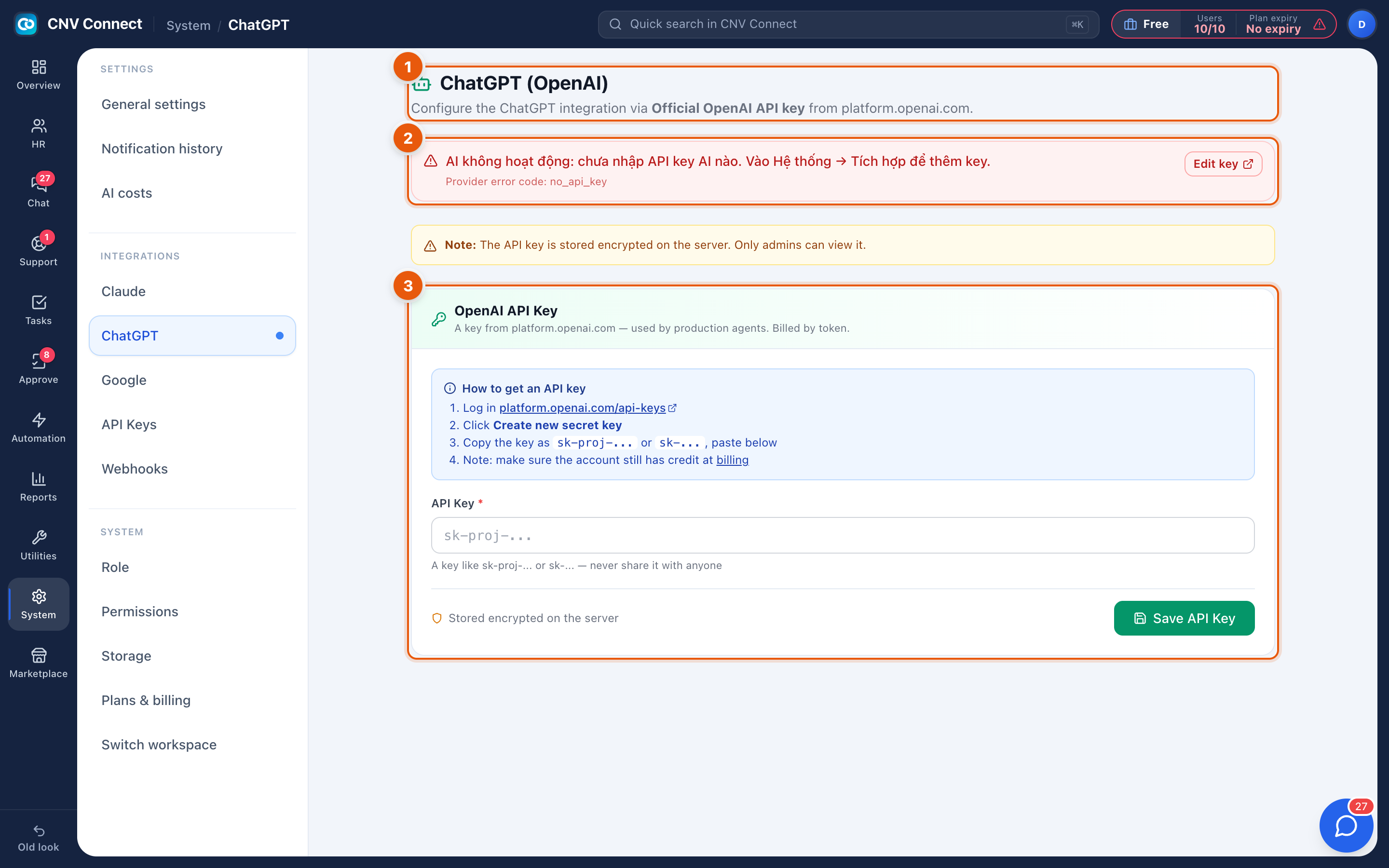
- Page title — configure the ChatGPT integration.
- Status banner — the warning shown while no AI key is stored anywhere: AI is not working — no AI API key has been entered. The banner itself is not translated yet.
- OpenAI API Key — the key from
platform.openai.com, in the formsk-proj-…, with Edit key / Save API Key beside it and the step-by-step instructions underneath.
How to…
Connect OpenAI
- Create the key in the OpenAI platform console.
- Paste it here and save.
- Confirm real usage in AI cost.
Choose between providers
If both keys are present, the workspace uses whichever provider each AI feature is configured for. Most workspaces keep one primary key and add the second only when a specific feature needs it.
Notes
- Keys are stored encrypted and never displayed again in full.
- Billing is on your OpenAI account; spending limits are set there, not here.
- Revoking a key in the provider console makes calls fail immediately — remember to remove or replace it here as well, or the error banner will confuse the next administrator.