
Appearance
Print library
The catalogue of printed material the company uses — posters, standees, business cards — with the artwork attached and a status saying whether it is current.
Menu path Utilities › Print library
Address https://hub.cnvconnect.com/utilities/print-library
Permission print_library:view
Who uses it marketing, office managers
The screen
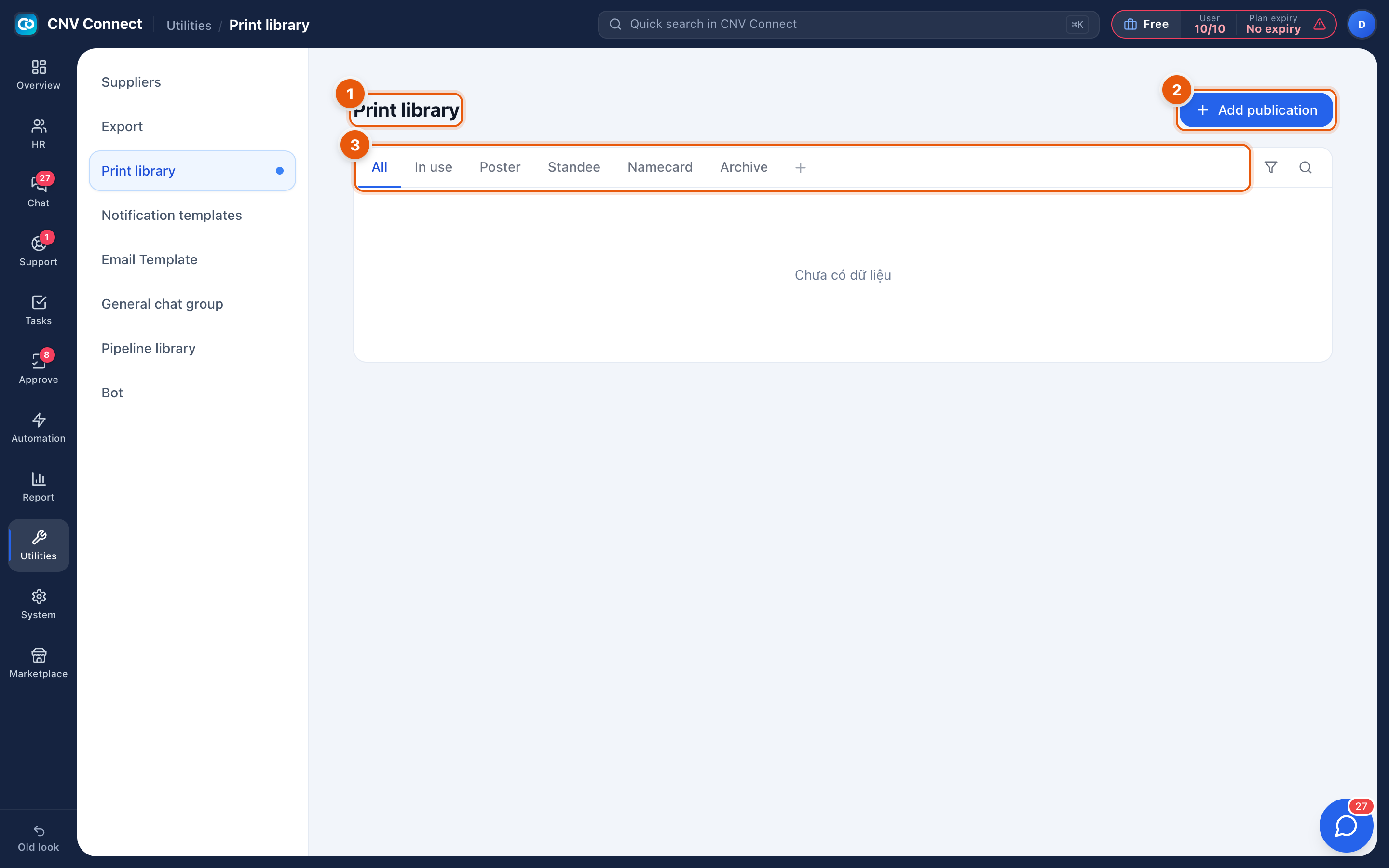
- Page title — print library.
- Add publication — register a printed item.
- Type tabs — All, In use, Poster, Standee, Namecard, Archive.
How to…
Add an item
- Select Add publication.
- Name it, choose the type, and attach the print-ready file.
- Record the size, the print run and the supplier if you track those.
- Set the status to in use.
Retire an old version
Move it to Archive rather than deleting it, and add the replacement as a new item. That way nobody reprints last year's poster by mistake, and you can still see what was in circulation.
Find the file to send to the printer
Open the item and download the attachment. Keeping the print-ready file here means it is not in somebody's mailbox when they are on holiday.
Notes
- Attachments count towards workspace storage; print-ready artwork is large, so archive with intent.
- Contract and document templates belong in E-mail templates or in the contract type, not here.