
Appearance
Monthly timesheet
The payroll view: every employee as a row, every day of the month as a column, and totals for each leave code on the right. This is the sheet you export at the end of the month.
Menu path HR › Timesheet (monthly)
Address https://hub.cnvconnect.com/timesheet/monthly
Permission timesheet_monthly:view
Who uses it payroll, HR
The screen
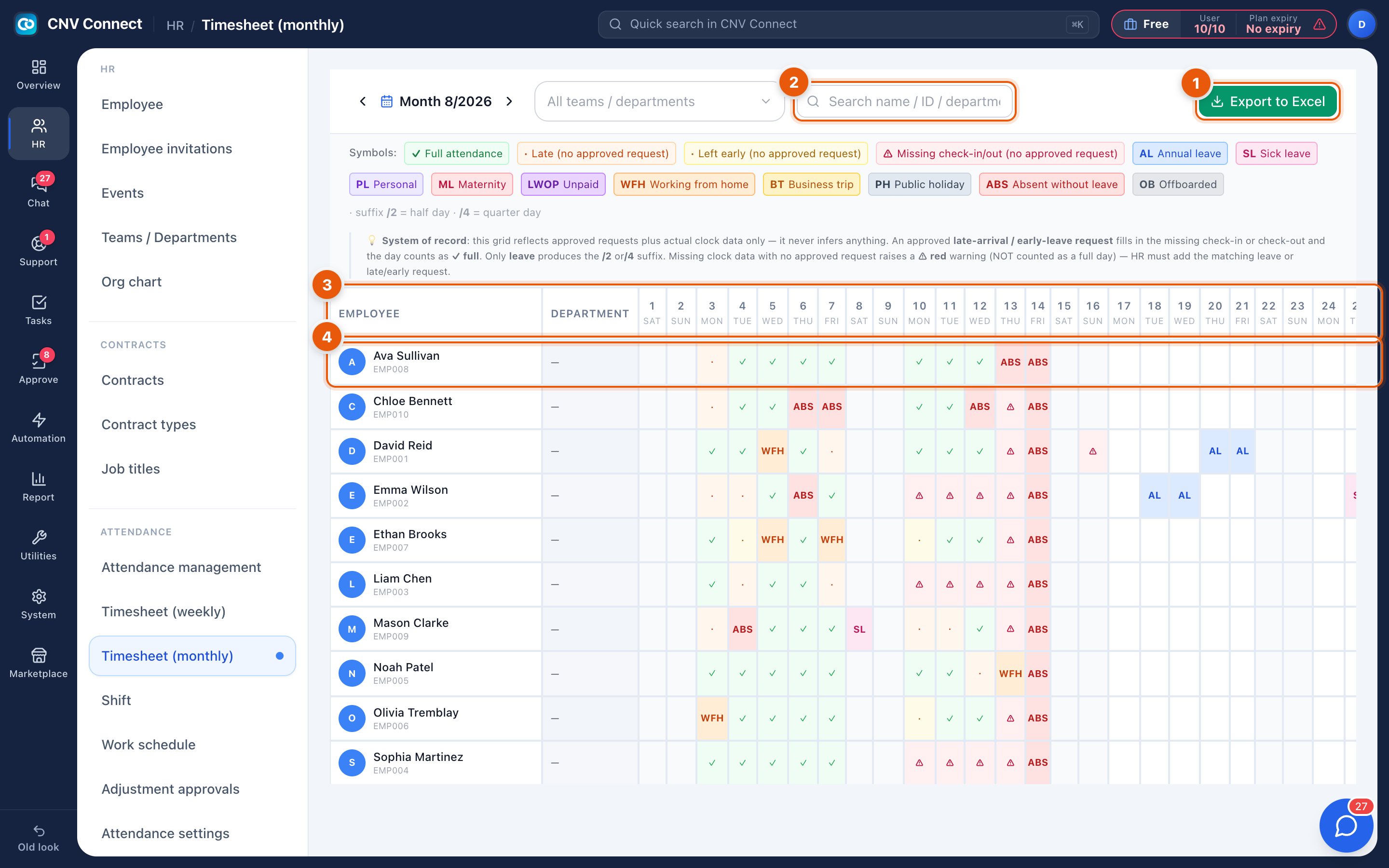
- Search — name, employee ID or department.
- Export to Excel — downloads exactly what you see, ready for payroll.
- Day columns — one per calendar day, labelled with the weekday. A tick means a full attended day; a dot or blank means nothing was recorded; weekends are shaded.
- Code columns — the totals on the right-hand edge, one per absence type.
The code columns
| Code | Meaning |
|---|---|
| AL | Annual leave |
| SL | Sick leave |
| PL | Personal / paid leave |
| ML | Maternity leave |
| LWOP | Leave without pay |
| WFH | Worked from home |
| BT | Business trip |
| PH | Public holiday |
| ABS | Absent — no record, no approved leave |
How to…
Close a month
- Choose the month.
- Scan the ABS column — every non-zero cell is either a missing punch or an unrecorded absence. Clear them through Adjustment approvals or a leave request.
- Check that public holidays show as PH for everyone; if not, the day is missing from Holidays.
- Select Export to Excel and hand the file to payroll.
Explain a number to an employee
Open the same person in the weekly timesheet — it shows each day's actual times rather than a symbol.
Notes
- The grid is wide by design; scroll horizontally to reach the code totals.
- Leave codes only appear once leave is approved. A pending request counts as nothing.
- Numbers here are derived, not stored: fix the underlying record or leave request and the sheet updates.