
Appearance
SLA policies
An SLA turns "we will get back to you" into a number the system can measure: how quickly a ticket must get its first reply, how quickly it must be resolved, and when it should be escalated.
Menu path Support › Settings › SLA
Address https://hub.cnvconnect.com/tickets/sla
Permission ticket_sla:view
Who uses it support administrators
The screen
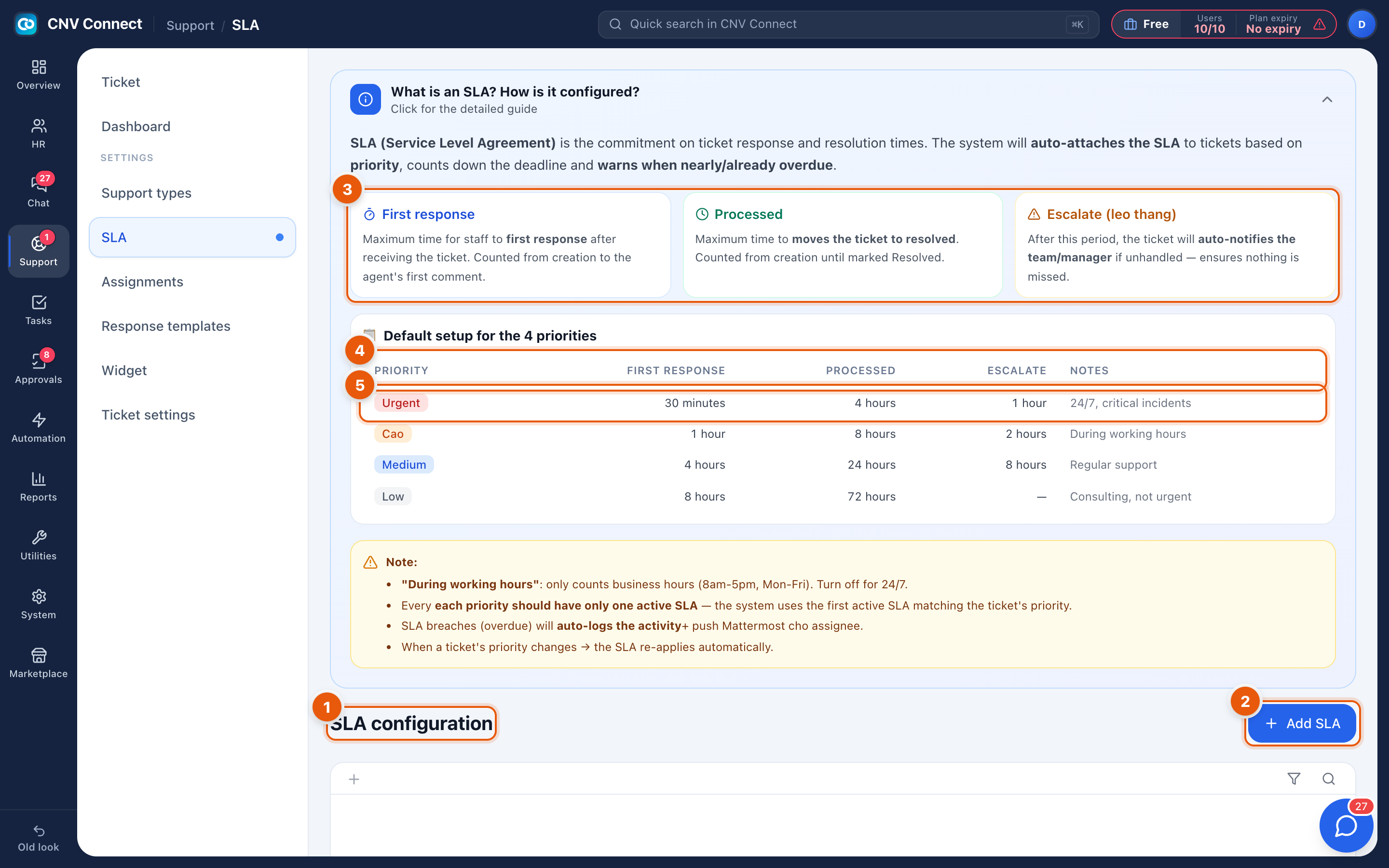
- Page title — SLA configuration. The What is an SLA? explainer sits just above it and defines each column; worth reading once.
- Add SLA — create a policy.
- Column meanings — the panel that explains First response (longest acceptable wait for the first agent reply), Processed (longest acceptable time to reach resolved) and Escalate (after this long the ticket notifies the manager).
- Columns — priority, first response, processed, escalate and notes.
- A row — one policy, for example Urgent · 30 minutes · 4 hours · 1 hour · 24/7, critical incidents.
A typical policy
| Priority | First response | Processed | Escalate |
|---|---|---|---|
| Urgent | 30 minutes | 4 hours | 1 hour |
| High | 2 hours | 8 hours | 4 hours |
| Medium | 4 hours | 24 hours | 8 hours |
| Low | 8 hours | 72 hours | 24 hours |
How to…
Create a policy
- Select Add SLA.
- Choose the priority it covers.
- Set the first-response, resolution and escalation targets.
- Decide whether the clock runs during working hours only (business hours, Monday to Friday) or around the clock. Urgent incidents usually need 24/7; everything else usually should not wake anybody at 3 a.m.
See who is breaching
Open the ticket queue and select the SLA violations filter, or read the support dashboard for the period.
Notes
- The first-response clock stops on the first customer response, not on an internal note.
- Waiting on customer pauses the resolution clock in the reports, which is why parking a ticket properly matters.
- Until a policy exists, tickets have no countdown and the SLA column stays empty.